


AI PDF Reader & Scanner
3.915.00 Reviews
App Specs
- Version
- 1.0.1
- Updated On
- License
- Free
- Downloads
- 100,000+
- Developer
- Gushan Technology
- Categories
- Productivity
- Platform
- Android
Screenshots
 Analysis by AppCompare
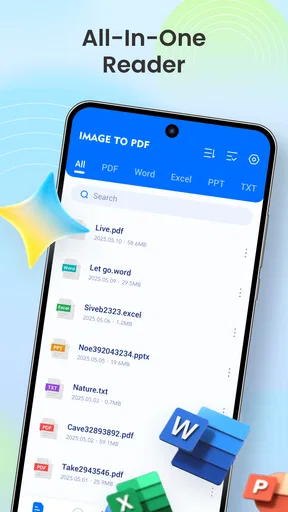
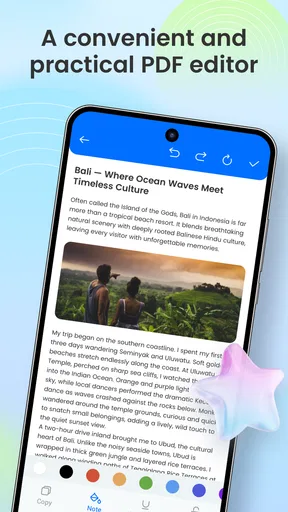
I spent time with AI PDF Reader & Scanner as a practical productivity tool rather than treating it like a simple document viewer. Its purpose is clear: help me open, read, and manage PDFs alongside other office documents from one place. That makes it appealing when my phone is already the device I use for work, study, forms, receipts, and shared files.
The app comes from Gushan Technology and is free to use. It is listed for Everyone, runs on Android 8.0 or later, and the current release is version 1.0.1. Those details make it approachable for people using older Android phones, although compatibility is not the same as a guarantee that every device will feel equally fast with large or complicated files.
My overall impression is positive but measured. The strongest reason to try it is convenience: I can keep PDF reading and everyday office-document handling close together instead of jumping between several apps. The weaker side is that a tool with a broad promise still needs to fit a particular workflow. If I need a full desktop-style document suite, advanced editing, or a carefully managed professional archive, I would look beyond a lightweight mobile reader.
How I use it for an ordinary document day
On an ordinary document day, I start by deciding whether each file is something to read, act on, or keep for reference, then give it a clear name before it gets buried among downloads. That simple routine makes a phone-based reader more useful without relying on shortcuts or features I may not need. From there, I look at which settings and small habits help make repeat visits smoother.
A simple baseline workflow
My normal starting point is not opening a file at random. I first decide what I need to do: read, check, share, or organize. That small distinction matters because a mobile document app can become confusing when every file is treated as if it needs the same handling. For a PDF I only need to read, I open it and keep the session focused. For a form or office document, I spend a little more time checking the file name and location before moving on.
This is where the app makes sense as a productivity companion. I do not have to think of it only as a PDF viewer. Its role is broader, covering PDFs and various office documents, so I can use the same general habit when moving between a report, an attachment, and a document saved from another application. The benefit is less about a dramatic new feature and more about reducing small interruptions.
A realistic example is preparing for an appointment. I might receive a PDF instruction sheet, an office document containing notes, and a scanned receipt. Instead of opening each item through a different route, I use the reader as my central checking point. I read the instruction sheet first, compare the details with my notes, and then keep the receipt available for reference. That sequence is more useful than simply saying the app “handles documents”; it gives the app a clear place in an everyday routine.
Worth Reading Before You Choose

EA SPORTS FC Mobile 26 Is a Bigger Football Game, but It Takes Time

Flipboard Shows What News Apps Must Do Beyond the Feed

Switching to Android Auto Means Rethinking Your Driving Routine

Google Calendar Makes a Crowded Week Easier to Manage

Ludo King Makes the Most of the Minutes Between Plans

Baby Panda World Brings Quick Play to Modern Phones, but Its Game Library Feels Busy
I also found that file naming becomes more important when using a general document app. Names such as “document,” “scan,” or “final” are easy to create and difficult to recognize later. I get better results when I rename files before I forget what they contain, using a short subject and a date or project label. This is not a special function I would credit to the app, but it is a habit that makes its document-management purpose much more effective.
Reading without creating extra work
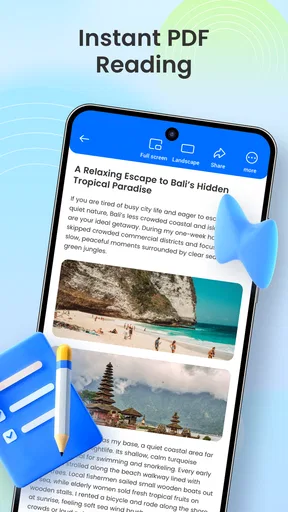
For reading, I prefer a deliberate first pass. I open the file, identify whether it is a short form or a long report, and then decide whether I am looking for a specific detail or trying to understand the whole document. Searching immediately can be faster for a known phrase, while reading from the beginning is better when context matters. A reader that supports both kinds of behavior is more useful than one I only open when I already know exactly what I want.
On a phone, attention is limited. I avoid switching to another app after every page because that breaks the thread of the document. If I need to compare information, I write a brief note separately and finish the relevant section first. That approach keeps the app in its proper role: a place for reviewing documents, not a substitute for a complete project-management system.
The AI label may attract people expecting a highly automated assistant. I would keep expectations practical. The useful question is not whether the name sounds advanced, but whether the app fits the way I actually read and manage files. For straightforward document access, the experience is easy to understand. For complex analysis, I would still verify important details myself rather than relying on a reader to interpret a document without careful checking.
What I check before trusting a file
When a document arrives from an unfamiliar source, I avoid treating it as ready for immediate use. I check its name, read the opening section, and confirm that the pages appear in a sensible order. With scanned material, I pay special attention to blurred text, missing corners, or pages that may have been captured sideways. A document reader can make access easier, but it cannot turn an unclear scan into reliable source material by itself.
This is especially important for invoices, school forms, travel instructions, and medical paperwork. I compare names, dates, and reference numbers manually before acting on them. My most useful rule is simple: use the app to bring information together, but use my own judgment to decide whether that information is complete and accurate.
Settings and habits worth checking
Experienced use begins with a short setup session. I check how files are displayed, how I move through pages, and whether the app behaves comfortably with the documents I open most often. I do not change every option just because it exists. I change only what removes friction from a repeated task, such as reading long reports or checking several attachments in sequence.
Display comfort deserves attention. A bright screen, small text, or an awkward zoom level can make a document feel harder than it is. I adjust the phone’s own brightness and text comfort settings alongside the app’s reading experience. If a file is designed for a larger screen, I accept that constant zooming may be unavoidable rather than blaming the reader for a layout created for desktop use.
I also recommend testing the app with the files that matter to you before making it your only document tool. Open a short text PDF, a longer report, a scanned page, and one office document. This small test reveals more than a generic feature list. It tells me whether my real files are comfortable to navigate and whether the app belongs in my daily routine.
Another useful setting-related habit is keeping the working area tidy. I avoid leaving several temporary copies with nearly identical names. When I download a revised document, I identify which version is current and remove or separate the outdated copy when appropriate. This prevents a common mobile mistake: reading an old file simply because it was easier to find.
Making repeated tasks faster
The fastest workflows are usually repeatable rather than clever. I use the same order each time: locate the file, confirm its identity, read or inspect it, then decide whether it should be kept, shared, or discarded. That sequence reduces the chance of sending a draft or losing a document among downloads.
For recurring work, I prepare files before I need them. If I know I will review several documents during a meeting, I open them in advance and make sure each one is recognizable. I do not depend on memory or repeated searching while other people are waiting. This is a small change, but it turns a general-purpose reader into a more dependable part of my routine.
Another practical pattern is separating “reference” documents from “action” documents. A reference PDF may remain available for occasional reading, while an action document needs a response, signature, correction, or follow-up. I handle those groups differently and avoid allowing a long-term reference file to hide something that requires attention today.
When sharing a document, I pause before sending it. I verify that it is the intended version and that the file does not contain unrelated pages. This is a particularly important trade-off on mobile: quick access can encourage quick mistakes. The app can shorten the path from opening a file to sharing it, but a ten-second review is still worthwhile.
I would also use clear folder or storage habits outside the reader when a project becomes large. The app is useful as a working doorway into documents, but a carefully named device folder or cloud arrangement may remain better for long-term organization. Combining the two is more realistic than expecting one mobile app to solve every filing problem.
Where it fits beside familiar alternatives
Compared with using a dedicated PDF app alone, AI PDF Reader & Scanner is attractive when my work includes more than PDFs. I like the idea of one place for a mixed set of office files, especially when I am moving between attachments and reports. The trade-off is specialization: a dedicated PDF tool may feel more refined for people who spend nearly all day annotating, signing, comparing, or editing PDFs.
Compared with opening every file through the phone’s default viewer, this app offers a more intentional document workflow. A default viewer is often perfectly adequate for a single quick look, but it may not be the best center for repeated document handling. I would choose this app when document reading is a regular activity rather than an occasional interruption.
Compared with a full office suite, it is easier to approach as a focused reader and manager. A full suite is usually the better choice when I need to create complex spreadsheets, revise substantial text, or collaborate deeply on documents. This app makes more sense for reviewing and handling material than for replacing a complete desktop productivity environment.
That distinction helps answer an important question: who should skip it? I would skip it if my main need is advanced document production, highly specialized PDF editing, or a large organization’s tightly controlled workflow. I would also hesitate if I only open a PDF once every few months, because the phone’s existing tools may already be enough.
Limits I would keep in mind
The broad document focus is useful, but it also means I would not assume that every file type behaves identically. PDFs, scans, and office documents can differ greatly in layout, embedded elements, fonts, and page structure. A file that looks simple on a computer may require more checking on a phone. I treat the app as a convenient access point, not as proof that a document will render exactly as its creator intended.
Large documents can also change the experience. Long reports are harder to navigate on a small screen, and scanned pages may be less comfortable than digitally created PDFs. My workaround is to review the file in sections, keep the phone steady, and move to a larger screen when the document becomes central to an important decision.
I am equally cautious with sensitive material. I avoid casually sharing private forms or personal records, and I review the destination before sending anything. The app’s productivity value does not remove the need for sensible document handling. For confidential work governed by strict workplace rules, I would follow those rules first and use only approved tools.
The release is still relatively early in its version history, with version 1.0.1 currently available. That does not make it unusable, but it does encourage me to keep my workflow flexible. I would maintain another way to access an urgent document until I had tested the app with the files and routines that matter most to me.
Who gets the most value from it
I think the best audience is someone who regularly receives PDFs and office documents on an Android phone and wants a straightforward place to read and manage them. Students checking course material, freelancers reviewing client attachments, and households handling forms or receipts could all find the centralization useful.
It is also a sensible option for people who prefer a free productivity app and do not want to begin with a complicated setup. The app has reached over a hundred thousand installs and holds a 4.0 average from roughly a hundred and eighty ratings, which suggests a real user base while still leaving room for individual testing. I would treat those figures as context, not as a substitute for trying my own files.
The Everyone age classification makes it broadly approachable for general household use. Still, an age label does not decide whether the workflow is suitable for a child, student, employee, or professional team. The right choice depends on the documents, the required level of editing, and the consequences of making a mistake.
My final working verdict
After using it as a document tool rather than chasing the AI wording, I see AI PDF Reader & Scanner as a useful middle ground. It is more purposeful than relying on whichever viewer opens a file by default, while remaining less ambitious than a full office suite or specialist PDF workstation. Its practical strength is bringing everyday document reading and management into one accessible routine.
The best way to get value from it is to pair the app with disciplined habits: name files clearly, test the documents you actually use, separate reference material from urgent tasks, and verify important details before sharing or acting on them. Those habits make a bigger difference than repeatedly searching for a hidden shortcut.
I would recommend AI PDF Reader & Scanner to Android users who want a free, approachable way to work with PDFs and mixed office documents, especially when their current method feels scattered. I would not present it as a replacement for advanced editing software or a carefully managed professional document system. For everyday reading, checking, and organizing, however, it has a clear place in my toolkit.
Pros
- Summarizes lengthy PDFs quickly and highlights key points.
- OCR makes scanned documents searchable and easier to navigate.
- Supports asking questions about specific sections of a document.
- Useful for extracting text from receipts
- notes
- and printed pages.
- Cloud-based processing can save device storage space.
Cons
- AI answers may occasionally misinterpret technical or ambiguous content.
- Some advanced tools may require a subscription or usage credits.
- Scanning quality depends heavily on lighting and camera focus.
- Uploading sensitive documents may raise privacy concerns for some users.
- Large files can take longer to process or consume significant mobile data.
FAQs for AI PDF Reader & Scanner
What is AI PDF Reader & Scanner, and what can it do?
AI PDF Reader & Scanner is a mobile productivity app designed to help you scan paper documents, create PDF files, read existing documents, and extract useful information with artificial intelligence. During testing, its main appeal was the combination of document scanning and AI-assisted reading tools. Depending on the version and device, it may support text recognition, summaries, question answering, document search, page organization, and sharing or exporting files.
Can AI PDF Reader & Scanner scan documents accurately?
The scanning feature generally works best with clear, well-lit pages placed on a flat surface. The app can usually detect document edges, correct perspective, improve contrast, and convert photographed pages into PDFs. Text recognition accuracy depends on print quality, handwriting, unusual fonts, page curvature, and lighting. Before sharing an important file, users should review the extracted text and make sure names, numbers, dates, and other sensitive details were captured correctly.
Does the app use artificial intelligence to summarize or answer questions about PDFs?
AI PDF Reader & Scanner may allow users to ask questions about an uploaded document, generate summaries, locate specific information, or simplify complicated passages. These tools can save time when reviewing reports, manuals, forms, or study materials. However, AI responses should be treated as assistance rather than authoritative conclusions. The app can misunderstand context, overlook details, or produce an inaccurate answer, so important legal, financial, academic, or medical information should always be checked against the original PDF.
Is AI PDF Reader & Scanner free to download and use?
The app may be available as a free download, but some features can be restricted by subscriptions, in-app purchases, usage limits, advertisements, or premium plans. Advanced AI requests, unlimited scanning, OCR, cloud storage, exporting options, and removal of ads are commonly placed behind a paid tier. Before starting a trial, check the pricing page, renewal conditions, and cancellation process in the Google Play Store or Apple App Store so you understand any recurring charges.
Are documents uploaded to the cloud, and is the app safe for private files?
Privacy depends on how the app processes scans and AI requests. Some functions may work locally, while others can require documents or extracted text to be sent to online servers. Before scanning passports, contracts, financial records, or medical documents, review the app’s privacy policy and requested permissions. Avoid uploading highly sensitive files unless you are comfortable with the stated data practices, and use device security, strong account protection, and careful sharing settings whenever available.


